Tools & Technology

Your Guide to Campus Tech Tools & Support
Mid-State’s Information Technology team supports the tools students use every day. We provide computers, software, internet access, and technical help across all campuses and centers.
Mid-State maintains more than 30 computer labs and resource areas, including within the Academic Learning Center on each campus. All devices connect to the Mid-State network, giving you access to the internet, printers, and the software you need for class.
Our goal is simple—make sure you have the technology you need to learn, study, and stay connected.
On this page, you’ll find quick links and helpful information about:
Help Desk Support
Still need help? Our 24/7 Help Desk team is here for you.
Students are expected to follow all College technology policies and procedures. It is your responsibility to read and follow these rules. Misuse of equipment or networks may result in loss of computer privileges and, if needed, referral to authorities. See Mid-State's Technology Policies for full details.
Password Reset
You can reset your password on your own at any time with the Password Reset Tool. Need more help? Check out our detailed instructions.
Account Info & Setup
Find everything you need to access your Mid-State accounts. Get help with the MyCampus student portal, email, and password resets in one place.
As a Mid-State student you will have access to all computer-based student applications through the MyCampus single sign-on portal, including:
- Blackboard
- Handshake
- Help Desk
- MyMSTC
- Online Orientation
- Student Email
- Scholarship Applications
Access MyCampus
- Set up your student accounts using the link emailed to you at the time of application.
- Go to the MyCampus login page. (Also available at the top of this website.)
- Enter your username (lastname+last4ofID#@mstc.edu (e.g., Taylor Smith with Student ID 12345678: smith5678@mstc.edu) and password. If you no longer have the email instructions for setting up your account, click on First Time User from the MyCampus login page.
Mid-State students and employees can reset their network password on their own in one of two ways:
On campus: From a Mid-State device, press the ctrl + alt + delete keys, and select Change a password.
Off campus: Use the Password Reset Tool
The Password Reset Tool can also be used if you’ve forgotten your password (passphrase) or wish to change it.
For assistance contact the 24/7 Help Desk at 877-469-6782.
FAQs
What is a passphrase?
What will I need to complete a password reset?
A passphrase is a significantly longer password made up of a unique sequence of words. Mid-State’s network passwords are now required to be in the form of a passphrase.
Mid-State network passphrase requirements:
- 16–30 characters.
- New passphrases should be unique. Do not enter a passphrase that has been used previously.
We recommend that you string together unrelated words into a phrase you can remember. The more unrelated, random, and nonsensical the words seem when put together, the stronger your passphrase will be.
Examples:
- beliefenglishfrisbeepromotion
- mathbornpackagesailor
- sleepyCORVETTEtacofootball
Note: You can add special characters or a mix of lower case and upper case letters. However, these are not required.
What will I need to complete a password reset?
You will need to access the personal email account or cell phone that Mid-State has on file for you. This is for security purposes. To update your personal email or cell phone, please contact us at 888-575-6782 during normal business hours.
What are the system requirements for a password reset?
The reset tool is compatible with the current version of any modern browser (e.g., Chrome, Edge, Firefox, Safari).
What is multi-factor authentication?
To add an additional layer of security to your student account, Mid-State requires multi-factor authentication (MFA). The MFA process combines two layers of security: something you know (your password) and something you have (your mobile device). If you do not have a mobile device, please submit a Help Desk ticket to discuss other options.
Mid-State students and employees can access their email online through Office 365, whether on campus or at home.
First Time? Create Your Password
Before you log in for the first time, create your network password [link to Password Reset tab above]. (Follow the same steps used to change an existing password.)
Access Email on a Computer
- Log in to MyCampus.
- Select the Email button to open Office 365.
Access Email on a Mobile Device
We recommend using the Microsoft Outlook app for the best experience.
Set up Outlook on your phone or tablet:
- Download Microsoft Outlook from the App Store (iOS) or Google Play (Android).
- Open the Outlook app.
- Tap Add Account.
- If prompted, choose Office 365.
- Enter your Mid-State email address:
- lastname + last four digits of your ID @mstc.edu (Example: Taylor Smith, ID 12345678 → smith5678@mstc.edu)
- Enter your password.
- Tap Next or Done to finish setup.
Once setup is complete, your Mid-State inbox will appear in the Outlook app.
Hardware & Software
Make sure your technology is ready for class. Review recommended computer specs, available software, and options for student loaner laptops.
Are you a Mid-State student looking to purchase a personal laptop for schoolwork? Below are the recommended computer specifications you'll need.
Note: These are just the minimum needed to allow you to complete most assigned coursework. Opting for a more powerful laptop should be considered, so the laptop can last you even beyond your time at Mid-State.
Mid-State also offers a student laptop checkout program. For more information, please visit the Academic Learning Center on any Mid-State Campus.
Minimum Recommended Computer Specifications:
- Processor: Intel i5 or AMD Ryzen 5 or greater processor
- Memory: 8 GB RAM minimum
- Storage: 500 GB solid state (SSD) minimum
- Web camera and mic
- Network: 10/100/1000 BASE-T Ethernet
- Wireless: Dual band 2.4/5.0 GHz Wi-Fi (802.11ac / Wi-Fi 5 minimum; 802.11ax / Wi-Fi 6 preferred)
- Operating System: Windows 11 / MacOS
Recommended Computer Specifications:
- Processor: Intel i5 or AMD Ryzen 5 or greater processor
- Memory: 16 GB RAM
- Storage: 1 TB solid state (SSD) hard drive or larger
- Web camera and mic
- Network: 10/100/1000 BASE-T Ethernet
- Wireless: Dual band 2.4/5.0 GHz Wi-Fi (802.11ac / Wi-Fi 5 minimum; 802.11ax / Wi-Fi 6 preferred)
- Operating System: Windows 11 Professional / MacOS
AutoCAD/Software Intensive Classes:
- Processor: Intel i7 (11th gen or newer) or AMD Ryzen 7 (5000 series or newer) or greater processor
- Graphics: Dedicated graphics card with 4 GB or more VRAM, DirectX 12 support
- Memory: 32 GB RAM
- Storage: 1 TB solid state (SSD) hard drive or larger
- Web camera and mic
- Network: 10/100/1000 BASE-T Ethernet
- Wireless: Dual band 2.4/5.0 GHz Wi-Fi (802.11ac / Wi-Fi 5 minimum; 802.11ax / Wi-Fi 6 preferred)
- Operating System: Windows 11 Professional / MacOS
Additional Recommendations
- Accessories: When purchasing wireless accessories choose dual band technology (2.4 GHz and 5.0 GHz capable).
- Cables: You may need to purchase accessories that are not included with a new computer purchase. Examples include an HDMI or display port cable for your monitor, network cable, and surge protector.
- Operating Systems: We support computers running Windows 11/ MacOS and newer.
- Student Software: Microsoft Office (Free), Adobe Creative Cloud are available to students, at a reduced price compared to what you will pay from a computer vendor.
- Warranty: Most retail computers have a 1-year warranty; we suggest you upgrade the manufacturer's warranty to at least 3 years. Note: Laptop warranties generally do not cover screen damage, such as cracking. Check with the manufacturer to see if they offer accidental damage coverage in lieu of the standard warranty.
Being a Mid-State student has its privileges, including access to free and discounted software. We encourage you to take full advantage of these offers.
Office 365 Pro (Free)
[NEED IMAGE: Office 365]
All current Mid-State students receive access to five installable copies of Office 365 Pro. These can be used on a personal PC or Mac for free. Office 365 Pro includes programs such as Outlook, Microsoft Office, and more. Once you are no longer enrolled in Mid-State classes for longer than 180 days, Office 365 Pro will cease to work. It will also go into a limited functionality mode.
Download Office Pro Plus for PC or Mac from your Office 365 login (lastname+last4ofID#@mstc.edu e.g., Taylor Smith with Student ID 12345678: smith5678@mstc.edu) at: https://portal.office.com/OLS/MySoftware.aspx
Note: Due to resource constraints and liability issues with assisting in installing software on non-Mid-State owned devices, we have limited ability to assist. Please do not contact the help desk for assistance or submit a work ticket for assistance in installing Office 365 Pro software. Thank you for your understanding!
OneDrive for Business (Free)
[NEED IMAGE: One Drive]
OneDrive for Business (download) is a place where you can store, sync, and share your school files. As part of Office 365, OneDrive for Business lets you update and share your files from anywhere. You can also work on Office documents with others at the same time.
Office Products in MyCampus
You will be able to access many Microsoft Office products online from the waffle in the upper left-hand corner of MyCampus.
My Campus showing the waffle menu expanded in the top right corner to show Microsoft Office Applications that are available. [NEED IMAGE]
Adobe Creative Cloud ($19.99/month or $239.88/year)
Every creative tool. One affordable membership.
The Adobe® Creative Cloud™ Student and Teacher Edition membership gives you access to all the latest Adobe creative tools. You will also have access to on-line services and other new applications as they’re released. For a low price–highly discounted for education–you get the freedom to create anything you can imagine.
What's Included in Creative Cloud?
The Adobe® Creative Cloud™ membership gives you access to every Adobe Creative Suite® desktop application including:
- Photoshop®
- Acrobat Pro®
- Illustrator®
- InDesign®
- Dreamweaver®
- And much more!
If you’re a Mid-State student in need of a laptop, a limited number of loaner laptops are available.
Wireless Network Access
Stay connected on campus. Learn how students, employees, and guests can access Mid-State’s wireless network.
Mid-State uses the Eduroam (education roaming) global wireless network access to provide free Wi-Fi services to students, faculty, and staff members. This applies to use on Mid-State locations (campuses and centers) as well as at other Eduroam-enabled institutions around the world.
- Mid-State devices will automatically connect to the Eduroam network when at a Mid-State location.
- Once your Mid-State user account is created, you can use your Mid-State network username and password to log in to Eduroam from any Mid-State location when visiting another participating institution worldwide.
You can find a list of participating schools on the Eduroam website. If you’re planning to travel to one of these schools, you can set up your laptop, tablet, or mobile device in advance from any Mid-State location.
Troubleshooting Eduroam
If your Mid-State computer is having issues automatically connecting to the Eduroam network:
- Go through the device's Wi-Fi settings and connect using your network username and password.
- Still having issues connecting your Mid-State device to the Eduroam network from a Mid-State locations? Please submit a Help Desk ticket.
- Students and employees should connect to Eduroam whenever possible. If you run into issues connecting to Eduroam, you may use MSTC-GUEST as a backup. If you are having any multi-factor authentication issues, or for the best receival of MFA, please look to connect personal phones to the MSTC-GUEST network.
Note: While your Mid-State credentials will allow you to access the Eduroam network at other participating institutions, each institution controls its own Eduroam infrastructure. This means that access to certain types of network traffic or specific device types may be restricted based on the policies of the host institution. If you experience issues connecting a device or accessing services while on another institution’s Eduroam network, please contact the IT department of that institution for assistance.
MSTC-GUEST is Mid-State’s wireless network for visitors to the College. Guests can connect without credentials to access the Internet while at a Mid-State location (campus or center).
The process to connect is simple:
- In your device’s Wi-Fi settings, select and connect to the MSTC-GUEST network.
- To complete the network connection, and fully utilize the Wi-Fi, you will need to accept the Acceptable Use Policy. At times you will need to re-accept this policy to continue having full network access.
Printing
Print with ease using Mid-State’s PaperCut system. Follow simple steps to send, manage, and pick up your print jobs.
PaperCut is Mid-State's print management software. Students are given a $25.00 credit for the duration of their Mid-State student account. Each print job a student prints is deducted from this credit. Once the credit amount of $25.00 is depleted, students will need to purchase pre-paid cards to add credit to their account.
Printing charges are $.0625 per black and white page, and $.25 per color page.
Once your account balance is at or near zero, you will need to obtain additional printing credit. Printing will be denied without sufficient printing credit in your account. To add more credit you can buy TopUp/Pre-Paid Cards from any campus main office. Each card is a voucher or coupon with a unique number. Please make sure your card number is kept secret until use. No refunds given for unredeemed cards or unused balances.
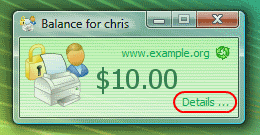
- Log into any Mid-State computer. Soon after login, your printing balance window will appear.
- Click the Details link on the balance window.
- A web page will open requesting your network username and password. Your username is your 8-digit student ID.
- After logging in click the Redeem Card link from the left menu.
- Enter the number from the card. It should be entered exactly as shown on the card, including any dashes (-).
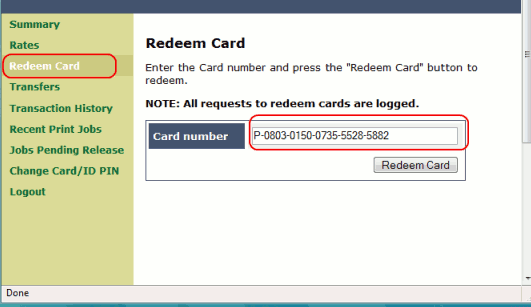
- Click Redeem Card. The value of the card will immediately be added to your printing balance.
- Click Summary from the left menu and check your balance to confirm the card's value has been added to your account. Note: The card is valid for a single usage only. The card should be recycled or disposed of after use. No refunds given for unredeemed cards or unused balances.
- Log into any Mid-State computer. Soon after login, your printing balance window will appear.
- Click the Details link on the balance window.
- A web page will open requesting your network username and password. Your username is your 8-digit student ID.
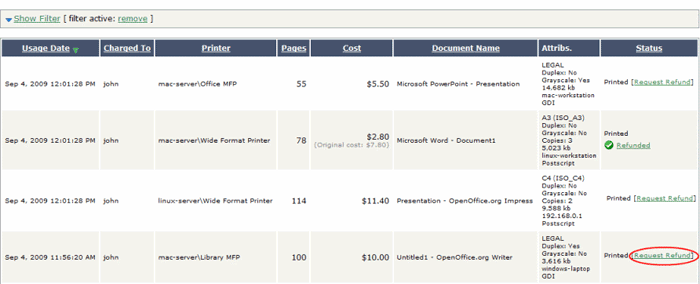
- Locate the first failed print job on the Recent Print Jobs page.
- Click the Request Refund link.
- Enter a reason.
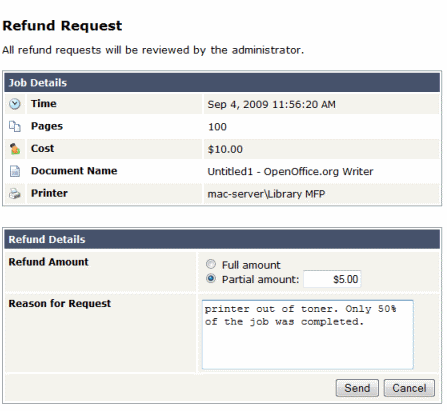
- Click Send.
After sending a print job, a popup dialog will appear and ask you to confirm the details. Click Print to confirm the job and agree to the cost. Otherwise, click Cancel if you no longer wish to print the job.
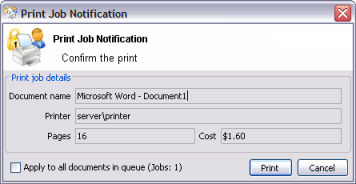
Note: Large documents might take a while to display the number of pages and cost.
After logging on to a workstation you will see a window showing your printing balance.
If the balance window is not visible (or if you have closed or minimized it) click the icon in your system tray to show it again.
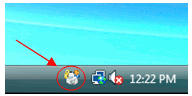
When you confirm a print job by pressing Print in the popup dialog, the cost will be deducted from your printing balance.
If you do not have enough printing balance for a job, you will see a Printing Denied message, and your document will not be printed.
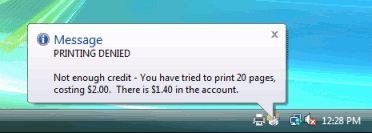
If the popup window does not appear or the icon is missing from your system tray, the print control system may not be active and printing will be denied. Please try restarting your system, or contact the Help Desk for more assistance at Ext.# 5555 from an on-campus phone.
Help Desk
Mid-State’s 24/7 Help Desk is here to support students and employees day or night. If you have a technology question or problem, help is just a call or ticket away.
Non-Urgent Requests—Submit a Ticket
Log in to the online Help Desk to create a work ticket. Your request will be acknowledged within 48 business hours.
We can help with:
- Blackboard
- MyCampus and login issues
- Computer hardware and software
- Microsoft applications
- Network and wireless access
- Lab and classroom equipment
- Printing to college network printers
Urgent Requests—Call Us
On Campus
Dial ext. 5555
Off Campus
Call 877-469-6782 (toll free)
(877-4MY-MSTC)